CI/CD on AWS: GitHub Actions to ECS Deploy Pipeline
A step-by-step tutorial for building a production CI/CD pipeline with GitHub Actions, ECR, and ECS Fargate using OIDC authentication and blue-green deployments.
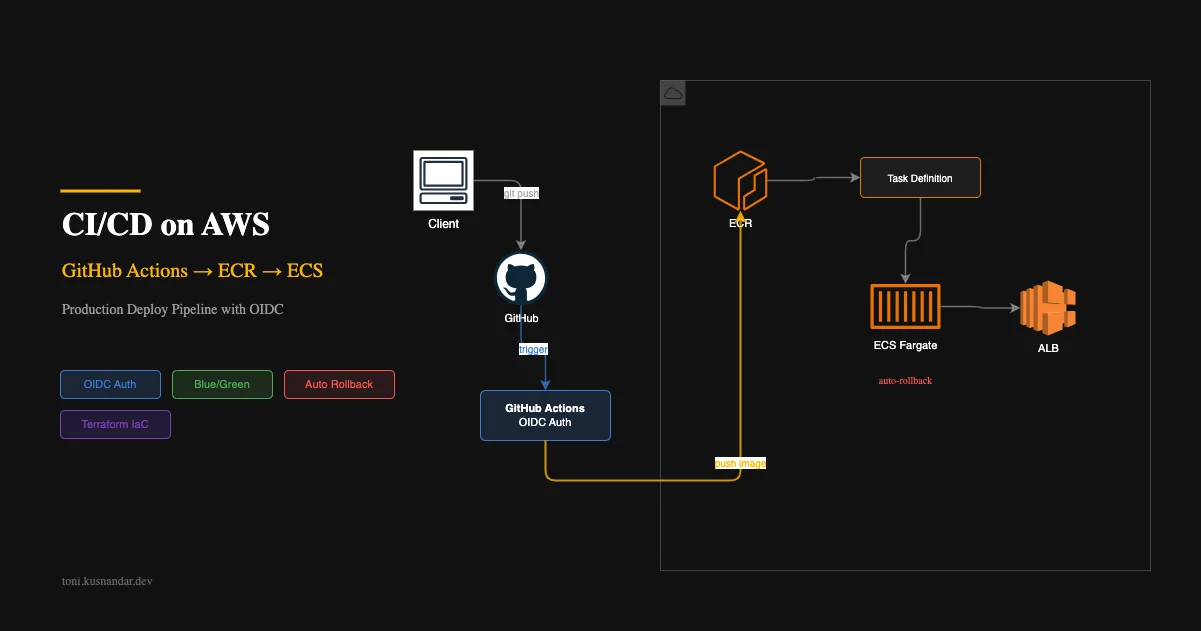
Every container-based project needs a deployment pipeline. And every time I set one up, I see the same mistakes: hardcoded access keys, no rollback strategy, manual steps that “someone just remembers to do.” Let me show you the pipeline I use for every ECS Fargate project.
This is not theoretical. This is the same pipeline running across multiple client projects, refined over dozens of iterations. It uses OIDC for authentication, supports blue-green and rolling deployments, handles multiple environments, and gives you one-command rollback.
If you are new to CI/CD and want to understand the fundamentals before diving into the production setup here, start with CI/CD: Stop Deploying by Hand, it covers the core concepts and the reasoning behind the two-pipeline pattern. This article builds on top of that foundation.
Architecture Overview
The flow is straightforward:

Developer pushes to main
    │
    ▼
GitHub Actions triggered
    │
    ├─ 1. Authenticate via OIDC (no access keys)
    ├─ 2. Run tests
    ├─ 3. Build Docker image
    ├─ 4. Push to ECR (tagged with commit SHA)
    ├─ 5. Update ECS task definition
    ├─ 6. Deploy new service version
    └─ 7. Wait for stability
         │
         ├─ Stable → Done
         └─ Unstable → Auto-rollback
Each step is idempotent. If the pipeline fails at step 5, you can re-run it without side effects. The ECR image from step 4 already exists, so it skips the push and proceeds to deployment.
Prerequisites
Before building the pipeline, you need these AWS resources. I manage all of them with Terraform as part of my architecture patterns for small teams:
- ECS Cluster with Fargate capacity provider
- ECR Repository for your container images
- ECS Service with at least one running task
- IAM OIDC Provider for GitHub Actions
- IAM Role with permissions for ECR push and ECS deploy
If you are starting from scratch, here is the Terraform for the OIDC provider:
# OIDC Provider for GitHub Actions
resource "aws_iam_openid_connect_provider" "github" {
  url = "https://token.actions.githubusercontent.com"

  client_id_list = ["sts.amazonaws.com"]

  thumbprint_list = [
    "6938fd4d98bab03faadb97b34396831e3780aea1",
    "1c58a3a8518e8759bf075b76b750d4f2df264fcd"
  ]
}

# IAM Role for GitHub Actions
resource "aws_iam_role" "github_actions" {
  name = "github-actions-deploy"

  assume_role_policy = jsonencode({
    Version = "2012-10-17"
    Statement = [
      {
        Effect = "Allow"
        Principal = {
          Federated = aws_iam_openid_connect_provider.github.arn
        }
        Action = "sts:AssumeRoleWithWebIdentity"
        Condition = {
          StringEquals = {
            "token.actions.githubusercontent.com:aud" = "sts.amazonaws.com"
          }
          StringLike = {
            "token.actions.githubusercontent.com:sub" = "repo:your-org/your-repo:*"
          }
        }
      }
    ]
  })
}

# Policy: ECR push + ECS deploy
resource "aws_iam_role_policy" "deploy" {
  name = "deploy-policy"
  role = aws_iam_role.github_actions.id

  policy = jsonencode({
    Version = "2012-10-17"
    Statement = [
      {
        Effect = "Allow"
        Action = [
          "ecr:GetAuthorizationToken",
          "ecr:BatchCheckLayerAvailability",
          "ecr:GetDownloadUrlForLayer",
          "ecr:BatchGetImage",
          "ecr:PutImage",
          "ecr:InitiateLayerUpload",
          "ecr:UploadLayerPart",
          "ecr:CompleteLayerUpload"
        ]
        Resource = "*"
      },
      {
        Effect = "Allow"
        Action = [
          "ecs:UpdateService",
          "ecs:DescribeServices",
          "ecs:DescribeTaskDefinition",
          "ecs:RegisterTaskDefinition",
          "ecs:DeregisterTaskDefinition",
          "iam:PassRole"
        ]
        Resource = "*"
      }
    ]
  })
}
Important: restrict the StringLike condition to your specific repository. Never use repo:*:* as that would allow any GitHub repository to assume your role.
Step 1: OIDC Authentication Setup
OIDC replaces static access keys with short-lived tokens. Here is why this matters:
- No secrets to rotate
- Tokens expire after the workflow completes
- If your repo is compromised, attackers cannot extract permanent credentials
- Audit trail shows exactly which workflow run assumed the role
In your GitHub Actions workflow, authentication looks like this:
permissions:
  id-token: write
  contents: read

steps:
  - name: Configure AWS credentials
    uses: aws-actions/configure-aws-credentials@v4
    with:
      role-to-assume: arn:aws:iam::123456789012:role/github-actions-deploy
      aws-region: ap-southeast-1
That is it. No AWS_ACCESS_KEY_ID secret. No AWS_SECRET_ACCESS_KEY. The GitHub OIDC token is exchanged for temporary AWS credentials automatically.
Step 2: Complete GitHub Actions Workflow
Here is the full workflow file. I will break down each section after:
name: Deploy to ECS

on:
  push:
    branches: [main]
  workflow_dispatch:
    inputs:
      environment:
        description: 'Target environment'
        required: true
        default: 'staging'
        type: choice
        options:
          - staging
          - production

env:
  AWS_REGION: ap-southeast-1
  ECR_REPOSITORY: my-api
  ECS_CLUSTER: my-cluster
  ECS_SERVICE: my-api-service
  CONTAINER_NAME: api

permissions:
  id-token: write
  contents: read

jobs:
  test:
    runs-on: ubuntu-latest
    steps:
      - uses: actions/checkout@v4

      - name: Set up Go
        uses: actions/setup-go@v5
        with:
          go-version: '1.22'

      - name: Run tests
        run: go test ./... -v -race -coverprofile=coverage.out

      - name: Check coverage threshold
        run: |
          COVERAGE=$(go tool cover -func=coverage.out | grep total | awk '{print $3}' | tr -d '%')
          if (( $(echo "$COVERAGE < 70" | bc -l) )); then
            echo "Coverage ${COVERAGE}% is below 70% threshold"
            exit 1
          fi

  deploy:
    needs: test
    runs-on: ubuntu-latest
    environment: ${{ github.event.inputs.environment || 'staging' }}

    steps:
      - uses: actions/checkout@v4

      - name: Configure AWS credentials
        uses: aws-actions/configure-aws-credentials@v4
        with:
          role-to-assume: ${{ secrets.AWS_ROLE_ARN }}
          aws-region: ${{ env.AWS_REGION }}

      - name: Login to Amazon ECR
        id: login-ecr
        uses: aws-actions/amazon-ecr-login@v2

      - name: Build, tag, and push image
        id: build-image
        env:
          ECR_REGISTRY: ${{ steps.login-ecr.outputs.registry }}
          IMAGE_TAG: ${{ github.sha }}
        run: |
          docker build -t $ECR_REGISTRY/$ECR_REPOSITORY:$IMAGE_TAG .
          docker build -t $ECR_REGISTRY/$ECR_REPOSITORY:latest .
          docker push $ECR_REGISTRY/$ECR_REPOSITORY:$IMAGE_TAG
          docker push $ECR_REGISTRY/$ECR_REPOSITORY:latest
          echo "image=$ECR_REGISTRY/$ECR_REPOSITORY:$IMAGE_TAG" >> $GITHUB_OUTPUT

      - name: Download current task definition
        run: |
          aws ecs describe-task-definition \
            --task-definition ${{ env.ECS_SERVICE }} \
            --query taskDefinition \
            > task-definition.json

      - name: Update task definition with new image
        id: task-def
        uses: aws-actions/amazon-ecs-render-task-definition@v1
        with:
          task-definition: task-definition.json
          container-name: ${{ env.CONTAINER_NAME }}
          image: ${{ steps.build-image.outputs.image }}

      - name: Deploy to ECS
        uses: aws-actions/amazon-ecs-deploy-task-definition@v2
        with:
          task-definition: ${{ steps.task-def.outputs.task-definition }}
          service: ${{ env.ECS_SERVICE }}
          cluster: ${{ env.ECS_CLUSTER }}
          wait-for-service-stability: true
          wait-for-minutes: 10

      - name: Notify on failure
        if: failure()
        run: |
          echo "Deployment failed. Previous task definition is still active."
          echo "To rollback manually: aws ecs update-service --cluster $ECS_CLUSTER --service $ECS_SERVICE --task-definition <previous-revision>"
Step 3: ECS Task Definition Update Strategy
The key insight: never modify your task definition in place. Always register a new revision.
ECS task definitions are immutable and versioned. When you deploy:
- Current running:
my-api:42 - Pipeline registers:
my-api:43with new image - ECS service updates to use
my-api:43 - New tasks start with revision 43
- Old tasks (revision 42) drain connections
- Once healthy, old tasks stop
If revision 43 fails health checks, ECS automatically stops the rollout. Your service continues running on revision 42.
# See all task definition revisions
aws ecs list-task-definitions --family-prefix my-api

# Rollback to specific revision
aws ecs update-service \
  --cluster my-cluster \
  --service my-api-service \
  --task-definition my-api:42
Step 4: Blue/Green vs Rolling Deployment
Rolling Deployment (Default)
ECS replaces tasks one at a time. During deployment, both old and new versions run simultaneously:
Time 0: [v1] [v1] [v1]         ← 3 tasks running v1
Time 1: [v1] [v1] [v2]         ← 1 new task starting
Time 2: [v1] [v2] [v2]         ← old task draining
Time 3: [v2] [v2] [v2]         ← deployment complete
Configure with deployment parameters:
resource "aws_ecs_service" "api" {
  # ...

  deployment_minimum_healthy_percent = 66
  deployment_maximum_percent         = 200

  deployment_circuit_breaker {
    enable   = true
    rollback = true  # Auto-rollback on failure
  }
}
Pros: Simple, no extra infrastructure, works with standard ALB. Cons: Rollback takes as long as deployment. Both versions serve traffic during transition.
Blue/Green Deployment
Uses AWS CodeDeploy with two target groups. Traffic switches atomically:
resource "aws_codedeploy_deployment_group" "api" {
  app_name               = aws_codedeploy_app.api.name
  deployment_group_name  = "api-deploy-group"
  service_role_arn       = aws_iam_role.codedeploy.arn
  deployment_config_name = "CodeDeployDefault.ECSAllAtOnce"

  ecs_service {
    cluster_name = aws_ecs_cluster.main.name
    service_name = aws_ecs_service.api.name
  }

  blue_green_deployment_config {
    terminate_blue_instances_on_deployment_success {
      action                           = "TERMINATE"
      termination_wait_time_in_minutes = 5
    }

    deployment_ready_option {
      action_on_timeout = "CONTINUE_DEPLOYMENT"
    }
  }

  load_balancer_info {
    target_group_pair_info {
      prod_traffic_route {
        listener_arns = [aws_lb_listener.https.arn]
      }
      target_group {
        name = aws_lb_target_group.blue.name
      }
      target_group {
        name = aws_lb_target_group.green.name
      }
    }
  }
}
Pros: Instant rollback (just switch traffic back). No mixed versions serving traffic. Cons: Costs 2x compute during deployment. More complex setup.
My recommendation: Start with rolling deployment. Move to blue/green only if you need instant rollback capability or cannot tolerate mixed versions during deployment.
Step 5: Rollback Strategy
Every deployment should have a clear rollback path. Here are three levels:
Automatic Rollback (Circuit Breaker)
ECS deployment circuit breaker monitors health checks during deployment. If new tasks fail to stabilize, it automatically rolls back:
deployment_circuit_breaker {
  enable   = true
  rollback = true
}
This catches most deployment failures without human intervention.
Manual Rollback (Task Definition Revert)
If automatic rollback does not trigger but you notice issues post-deployment:
# Find the previous working revision
aws ecs describe-services \
  --cluster my-cluster \
  --services my-api-service \
  --query 'services[0].deployments[*].taskDefinition'

# Rollback to previous revision
aws ecs update-service \
  --cluster my-cluster \
  --service my-api-service \
  --task-definition my-api:42 \
  --force-new-deployment
Git Revert (Full Pipeline Rollback)
For critical issues, revert the commit and let the pipeline deploy the previous code:
git revert HEAD
git push origin main
# Pipeline rebuilds and deploys the reverted code
This is the safest option because it ensures your Git history matches what is deployed.
Step 6: Environment-Specific Deploys
The workflow supports two deployment patterns:
Automatic (Staging on Push)
Every push to main deploys to staging automatically. This gives you continuous integration with immediate feedback.
Manual (Production with Approval)
Production requires a manual trigger with approval gates:
environment: production # GitHub Environment with required reviewersConfigure this in GitHub Settings > Environments > production > add required reviewers.
The same workflow handles both. The environment input determines which AWS account, cluster, and service receives the deployment.
env:
  ECS_CLUSTER: ${{ vars.ECS_CLUSTER }}  # Set per-environment in GitHub
  ECS_SERVICE: ${{ vars.ECS_SERVICE }}
Common Pitfalls and Debugging Tips
Pitfall 1: OIDC Subject Claim Mismatch
Error: Not authorized to perform sts:AssumeRoleWithWebIdentity
The subject claim in your IAM role condition must match exactly. For pushes to main:
repo:your-org/your-repo:ref:refs/heads/mainFor pull requests:
repo:your-org/your-repo:pull_requestUse a wildcard repo:your-org/your-repo:* during development, then restrict for production.
Pitfall 2: Health Check Grace Period Too Short
New containers need time to start before health checks declare them unhealthy. Set an appropriate grace period:
health_check_grace_period_seconds = 60Without this, ECS kills your container before it finishes starting up, creating an infinite deploy loop.
Pitfall 3: Forgetting Service Stability Wait
The wait-for-service-stability flag is critical. Without it, the pipeline reports success immediately after starting the deployment, before knowing if it actually worked.
Pitfall 4: ECR Image Tag Mutability
Always use immutable tags. The commit SHA guarantees each image is unique:
resource "aws_ecr_repository" "api" {
  name                 = "my-api"
  image_tag_mutability = "IMMUTABLE"
}
Pitfall 5: Task Role vs Execution Role
- Task Role: Permissions your application needs at runtime (access S3, SQS, etc.)
- Execution Role: Permissions ECS needs to pull images and write logs
These are different IAM roles. Mixing them up causes either pull failures or runtime permission errors.
Complete Pipeline Summary
The pipeline I have described here is the same one I set up for clients through my DevOps support service. It combines security, reliability, and simplicity without over-engineering.
If you are running ECS Fargate as your primary compute, this pipeline takes about a day to set up from scratch. Once running, it eliminates manual deployment steps entirely.
Key principles:
- No long-lived credentials anywhere
- Every deployment is reversible
- Staging validates before production
- Circuit breakers catch failures automatically
- Git history matches production state
The next step after getting basic deployments working is adding database migration support, canary deployments, and automated load testing. But start here. Ship this pipeline, let it run for a few weeks, then iterate.
See this pipeline in action in my CI/CD portfolio projects and insurance backend DevOps implementation.