Blue-Green Deployment on ECS: Zero Downtime Release Strategy
A complete guide to implementing blue-green deployments on ECS Fargate using CodeDeploy, with instant rollback, traffic shifting, and Terraform configuration.
Rolling deployments work for most services. You update tasks one at a time, ECS drains old connections, done. But when you need instant rollback capability or cannot tolerate mixed API versions serving traffic simultaneously, blue-green is the right approach.
I use blue-green deployments for user-facing APIs, payment services, and any service where a bad deployment needs to be reversed in seconds, not minutes. The setup is more complex than rolling, but the operational benefits are significant.
This builds on the CI/CD pipeline with GitHub Actions and ECS guide. If you have not set up basic ECS deployments yet, start there.
How Blue-Green Works on AWS
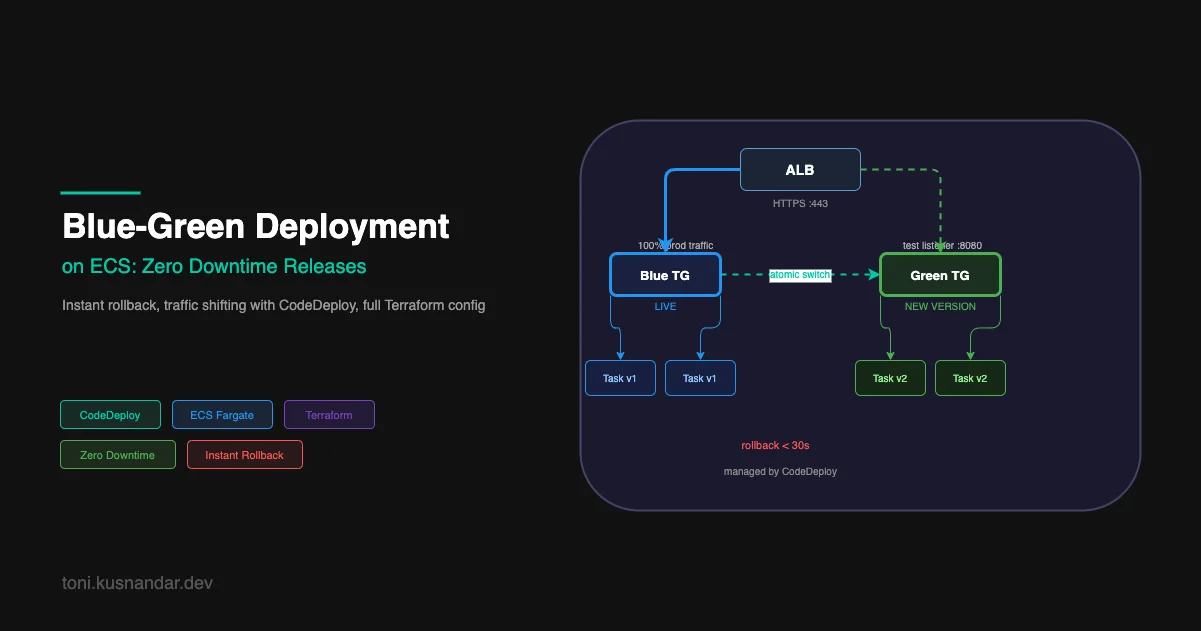
The AWS implementation uses CodeDeploy as the traffic controller:
ALB (HTTPS:443)
    │
    ├── Production listener rule → Blue target group (current live)
    └── Test listener rule → Green target group (new version)

During deployment:
1. CodeDeploy registers new tasks in Green target group
2. Green tasks pass health checks
3. CodeDeploy shifts production traffic from Blue to Green
4. Blue tasks remain alive during wait period
5. After wait period, Blue tasks terminate

Rollback:
1. Shift production traffic back to Blue (< 30 seconds)
2. Terminate Green tasks
Two target groups on one ALB. One is live, one is staging the new version. Traffic switches atomically. No requests hit both versions simultaneously.
Prerequisites
You need:
- An existing ECS cluster and service
- An ALB with HTTPS listener
- CodeDeploy application and deployment group
- Two target groups on the ALB
All managed with Terraform below.
Terraform: Full Infrastructure Setup
ALB with Two Target Groups
# Blue target group (initial active)
resource "aws_lb_target_group" "blue" {
  name        = "my-api-blue"
  port        = 8080
  protocol    = "HTTP"
  vpc_id      = aws_vpc.main.id
  target_type = "ip"

  health_check {
    enabled             = true
    path                = "/health"
    port                = "8080"
    protocol            = "HTTP"
    healthy_threshold   = 2
    unhealthy_threshold = 3
    timeout             = 5
    interval            = 10
    matcher             = "200"
  }

  deregistration_delay = 30
}

# Green target group (receives new deployments)
resource "aws_lb_target_group" "green" {
  name        = "my-api-green"
  port        = 8080
  protocol    = "HTTP"
  vpc_id      = aws_vpc.main.id
  target_type = "ip"

  health_check {
    enabled             = true
    path                = "/health"
    port                = "8080"
    protocol            = "HTTP"
    healthy_threshold   = 2
    unhealthy_threshold = 3
    timeout             = 5
    interval            = 10
    matcher             = "200"
  }

  deregistration_delay = 30
}

# Production listener: routes traffic to Blue by default
resource "aws_lb_listener" "https" {
  load_balancer_arn = aws_lb.main.arn
  port              = 443
  protocol          = "HTTPS"
  ssl_policy        = "ELBSecurityPolicy-TLS13-1-2-2021-06"
  certificate_arn   = aws_acm_certificate.main.arn

  default_action {
    type             = "forward"
    target_group_arn = aws_lb_target_group.blue.arn
  }

  lifecycle {
    ignore_changes = [default_action]  # CodeDeploy manages this
  }
}

# Test listener: used by CodeDeploy to validate Green before traffic switch
resource "aws_lb_listener" "test" {
  load_balancer_arn = aws_lb.main.arn
  port              = 8080
  protocol          = "HTTP"

  default_action {
    type             = "forward"
    target_group_arn = aws_lb_target_group.green.arn
  }

  lifecycle {
    ignore_changes = [default_action]
  }
}
The ignore_changes lifecycle block is important. CodeDeploy updates the listener target groups during deployments. Without this, the next terraform apply would revert the listener to point at Blue even after a successful deployment to Green.
ECS Service with CODE_DEPLOY Controller
resource "aws_ecs_service" "api" {
  name            = "my-api"
  cluster         = aws_ecs_cluster.main.id
  task_definition = aws_ecs_task_definition.api.arn
  desired_count   = 3

  launch_type = "FARGATE"

  # Use CODE_DEPLOY instead of default ECS controller
  deployment_controller {
    type = "CODE_DEPLOY"
  }

  network_configuration {
    subnets          = aws_subnet.private[*].id
    security_groups  = [aws_security_group.ecs_tasks.id]
    assign_public_ip = false
  }

  # Load balancer connects to Blue target group initially
  load_balancer {
    target_group_arn = aws_lb_target_group.blue.arn
    container_name   = "api"
    container_port   = 8080
  }

  lifecycle {
    ignore_changes = [
      task_definition,    # CodeDeploy manages this
      load_balancer,      # CodeDeploy manages this
    ]
  }
}
CodeDeploy Application and Deployment Group
resource "aws_codedeploy_app" "api" {
  compute_platform = "ECS"
  name             = "my-api"
}

resource "aws_iam_role" "codedeploy" {
  name = "codedeploy-ecs-role"

  assume_role_policy = jsonencode({
    Version = "2012-10-17"
    Statement = [{
      Effect    = "Allow"
      Principal = { Service = "codedeploy.amazonaws.com" }
      Action    = "sts:AssumeRole"
    }]
  })
}

resource "aws_iam_role_policy_attachment" "codedeploy" {
  role       = aws_iam_role.codedeploy.name
  policy_arn = "arn:aws:iam::aws:policy/AWSCodeDeployRoleForECS"
}

resource "aws_codedeploy_deployment_group" "api" {
  app_name               = aws_codedeploy_app.api.name
  deployment_group_name  = "my-api-deployment-group"
  service_role_arn       = aws_iam_role.codedeploy.arn
  deployment_config_name = "CodeDeployDefault.ECSAllAtOnce"

  ecs_service {
    cluster_name = aws_ecs_cluster.main.name
    service_name = aws_ecs_service.api.name
  }

  deployment_style {
    deployment_option = "WITH_TRAFFIC_CONTROL"
    deployment_type   = "BLUE_GREEN"
  }

  blue_green_deployment_config {
    deployment_ready_option {
      action_on_timeout    = "CONTINUE_DEPLOYMENT"
      wait_time_in_minutes = 0  # Switch immediately after health checks pass
    }

    terminate_blue_instances_on_deployment_success {
      action                           = "TERMINATE"
      termination_wait_time_in_minutes = 5  # Keep Blue alive for 5 minutes after switch
    }
  }

  auto_rollback_configuration {
    enabled = true
    events  = ["DEPLOYMENT_FAILURE", "DEPLOYMENT_STOP_ON_ALARM"]
  }

  load_balancer_info {
    target_group_pair_info {
      prod_traffic_route {
        listener_arns = [aws_lb_listener.https.arn]
      }

      test_traffic_route {
        listener_arns = [aws_lb_listener.test.arn]
      }

      target_group {
        name = aws_lb_target_group.blue.name
      }

      target_group {
        name = aws_lb_target_group.green.name
      }
    }
  }
}
The termination_wait_time_in_minutes = 5 keeps the old Blue environment alive for 5 minutes after traffic switches to Green. During this window, you can manually trigger a rollback if you observe issues after the switch. After 5 minutes, Blue terminates automatically.
Traffic Shifting Strategies
CodeDeploy provides three built-in strategies:
All-At-Once
Traffic: 100% Blue → 100% Green (instantaneous)Configuration:
deployment_config_name = "CodeDeployDefault.ECSAllAtOnce"Best for: internal services, non-critical APIs, fast iteration. Zero validation window but fastest deployment.
Canary
Traffic: 100% Blue → 10% Green (5 min validation) → 100% GreenConfiguration:
deployment_config_name = "CodeDeployDefault.ECSCanary10Percent5Minutes"Or create a custom config:
resource "aws_codedeploy_deployment_config" "canary_10" {
  deployment_config_name = "my-api-canary-10"
  compute_platform       = "ECS"

  traffic_routing_config {
    type = "TimeBasedCanary"

    time_based_canary {
      interval   = 5   # Wait 5 minutes at 10%
      percentage = 10  # Start with 10% traffic to Green
    }
  }
}
Best for: user-facing APIs where you want to validate with real traffic before full rollout. If the 10 percent window shows errors, CodeDeploy rolls back automatically before the full switch.
Linear
Traffic: 100% Blue → 10% Green → 20% Green → ... → 100% Green (10% every 5 min)Configuration:
resource "aws_codedeploy_deployment_config" "linear_10" {
  deployment_config_name = "my-api-linear-10"
  compute_platform       = "ECS"

  traffic_routing_config {
    type = "TimeBasedLinear"

    time_based_linear {
      interval   = 5   # Increment every 5 minutes
      percentage = 10  # Add 10% each increment
    }
  }
}
Best for: high-traffic services where gradual rollout reduces risk, or when you want to monitor error rates at each traffic increment before proceeding.
GitHub Actions Integration
Update your GitHub Actions workflow to trigger a CodeDeploy deployment instead of directly updating the ECS service:
- name: Create AppSpec file
  run: |
    cat > appspec.json << EOF
    {
      "version": 0.0,
      "Resources": [{
        "TargetService": {
          "Type": "AWS::ECS::Service",
          "Properties": {
            "TaskDefinition": "${{ steps.task-def.outputs.task-definition-arn }}",
            "LoadBalancerInfo": {
              "ContainerName": "api",
              "ContainerPort": 8080
            }
          }
        }
      }]
    }
    EOF

- name: Create deployment
  id: deploy
  run: |
    DEPLOYMENT_ID=$(aws deploy create-deployment \
      --application-name my-api \
      --deployment-group-name my-api-deployment-group \
      --revision revisionType=AppSpecContent,appSpecContent={content="$(cat appspec.json | jq -c .)"} \
      --query 'deploymentId' \
      --output text)
    echo "deployment_id=$DEPLOYMENT_ID" >> $GITHUB_OUTPUT

- name: Wait for deployment
  run: |
    aws deploy wait deployment-successful \
      --deployment-id ${{ steps.deploy.outputs.deployment_id }}
The aws deploy wait deployment-successful command blocks until the deployment completes or fails. If CodeDeploy detects health check failures or triggers auto-rollback, the command exits with a non-zero code and fails the workflow.
Monitoring Deployments
CloudWatch Alarms for Auto-Rollback
Configure CodeDeploy to roll back automatically if error rates spike during deployment:
resource "aws_cloudwatch_metric_alarm" "high_error_rate" {
  alarm_name          = "my-api-high-error-rate"
  comparison_operator = "GreaterThanThreshold"
  evaluation_periods  = 2
  metric_name         = "HTTPCode_Target_5XX_Count"
  namespace           = "AWS/ApplicationELB"
  period              = 60
  statistic           = "Sum"
  threshold           = 10
  treat_missing_data  = "notBreaching"

  dimensions = {
    LoadBalancer = aws_lb.main.arn_suffix
  }
}

# Attach alarm to CodeDeploy deployment group
resource "aws_codedeploy_deployment_group" "api" {
  # ... other config ...

  alarm_configuration {
    alarms  = [aws_cloudwatch_metric_alarm.high_error_rate.name]
    enabled = true
  }

  auto_rollback_configuration {
    enabled = true
    events  = ["DEPLOYMENT_FAILURE", "DEPLOYMENT_STOP_ON_ALARM"]
  }
}
If the high-error-rate alarm fires during a deployment, CodeDeploy rolls back automatically. Traffic switches back to Blue, Green terminates, workflow fails with a meaningful error.
Deployment Notifications
resource "aws_sns_topic" "deploy_notifications" {
  name = "ecs-deploy-notifications"
}

resource "aws_codedeploy_deployment_group" "api" {
  # ... other config ...

  trigger_configuration {
    trigger_events = [
      "DeploymentStart",
      "DeploymentSuccess",
      "DeploymentFailure",
      "DeploymentRollback",
    ]
    trigger_name       = "deploy-notification"
    trigger_target_arn = aws_sns_topic.deploy_notifications.arn
  }
}
This sends SNS notifications for every deployment event. Connect to Slack via Lambda or use AWS Chatbot for direct Slack integration.
Manual Rollback
If you need to roll back manually during the Blue environment wait window:
# Get the active deployment ID
DEPLOYMENT_ID=$(aws deploy list-deployments \
  --application-name my-api \
  --deployment-group-name my-api-deployment-group \
  --include-only-statuses Succeeded \
  --query 'deployments[0]' \
  --output text)

# Stop and roll back
aws deploy stop-deployment \
  --deployment-id $DEPLOYMENT_ID \
  --auto-rollback-enabled
This switches traffic back to Blue and terminates Green tasks. Execution time: 30 seconds or less.
After the wait window expires and Blue terminates, manual rollback is no longer possible via CodeDeploy. In that case, trigger a new deployment with the previous task definition revision.
Rolling vs Blue-Green: Decision Guide
| Factor | Rolling | Blue-Green |
|---|---|---|
| Mixed versions during deploy | Yes | No |
| Rollback speed | 5-10 minutes | Under 30 seconds |
| Cost during deployment | Same | 2x compute |
| Complexity | Low | Medium |
| Supports canary traffic | No | Yes |
| Works with stateful connections | Hard | Yes |
Use rolling deployment when:
- Your service is stateless and API is backwards-compatible
- Rollback speed of 5 to 10 minutes is acceptable
- You want the simplest possible setup
Use blue-green deployment when:
- Your API is user-facing and cannot serve mixed versions
- SLA requires rollback in under 1 minute
- You want canary traffic validation before full cutover
- Your service has long-lived connections that need graceful handling
For most internal microservices, rolling deployment with a circuit breaker is sufficient. I use blue-green for payment APIs, customer-facing endpoints, and services where a bad deploy directly impacts user experience.
If you need help setting up blue-green deployments for your ECS services, I offer DevOps support that covers CodeDeploy setup, ALB configuration, and GitHub Actions integration. This pattern is also covered in my CI/CD pipeline guide where the blue-green option is discussed alongside rolling deployments.
For portfolio examples of production deployment pipelines, see my insurance platform DevOps work and mini DevOps projects.